
Buying a Webflow template is the easy part. Making it feel like your website — that's where the real work starts. The good news? You don't need to touch code at all. Webflow is built so you can customize almost everything visually.
Start With Content First (Not Design)
Before changing colors or animations, replace the template content. Update headlines, paragraphs, images, buttons, and logos. Templates look generic mostly because of placeholder content.
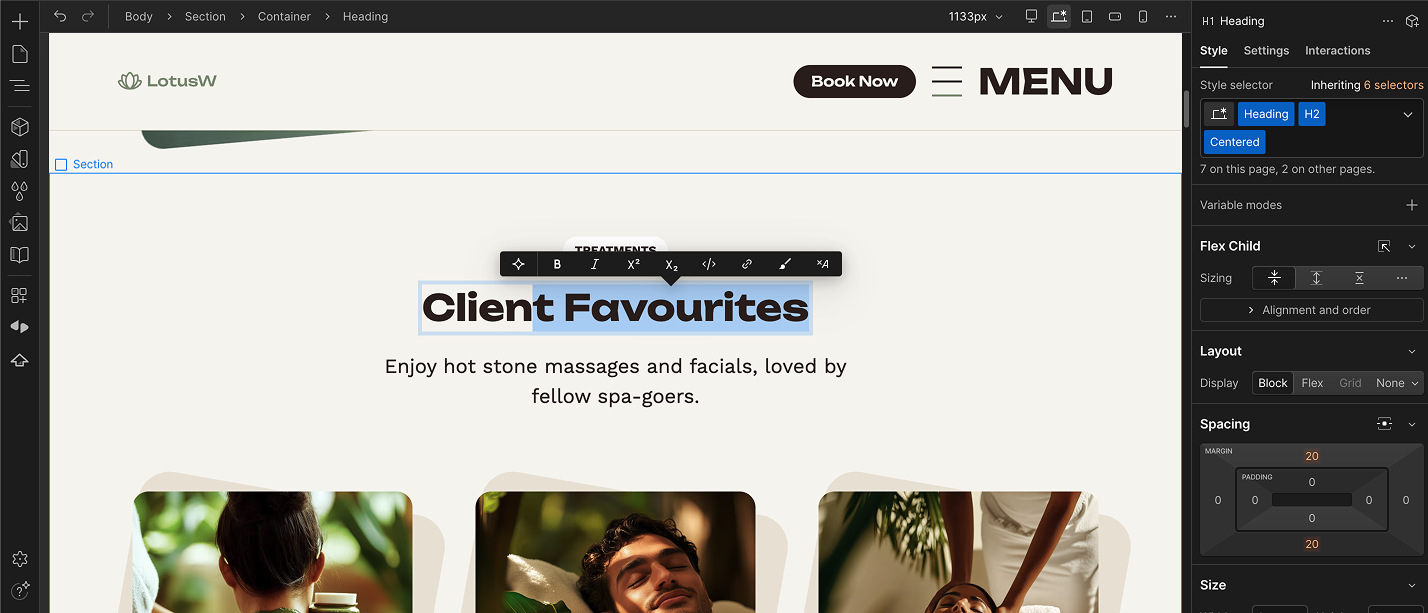
Change Colors and Fonts Globally
In Webflow, styles are connected through classes. Change a color or font once and it updates everywhere. Go to Style Panel → Typography / Colors and adjust brand colors, font family, button colors, and backgrounds.
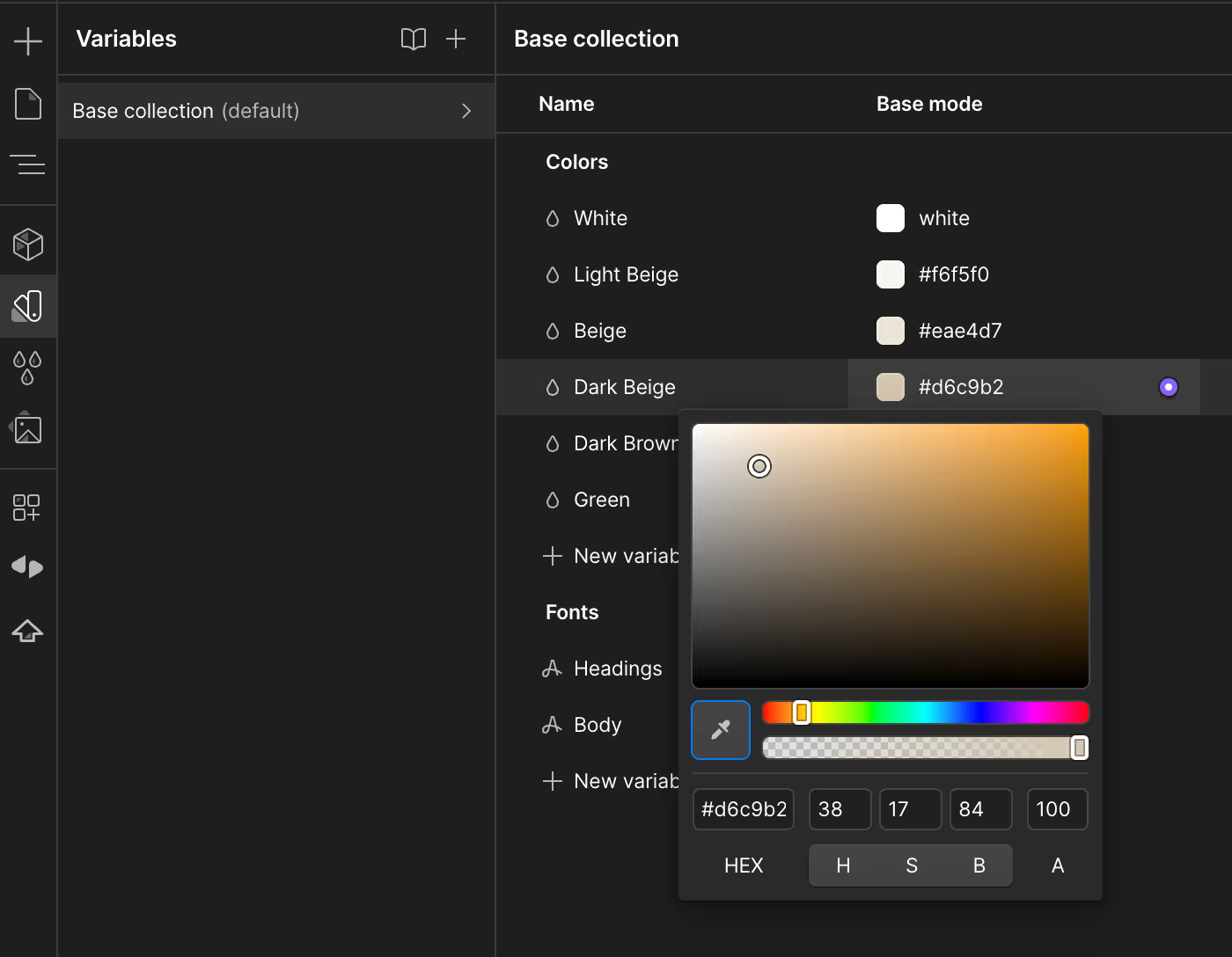
Style Panel Is Your Best Friend
Most customization happens in the style panel. Adjust spacing, font size, alignment, backgrounds, borders, and shadows. No CSS needed, just sliders and dropdowns.

Remove Sections You Don't Need
Templates often include extra sections like pricing tables, testimonials, feature grids, and FAQs. Delete anything that doesn't support your goal — cleaner pages convert better.
Swap Images and Icons
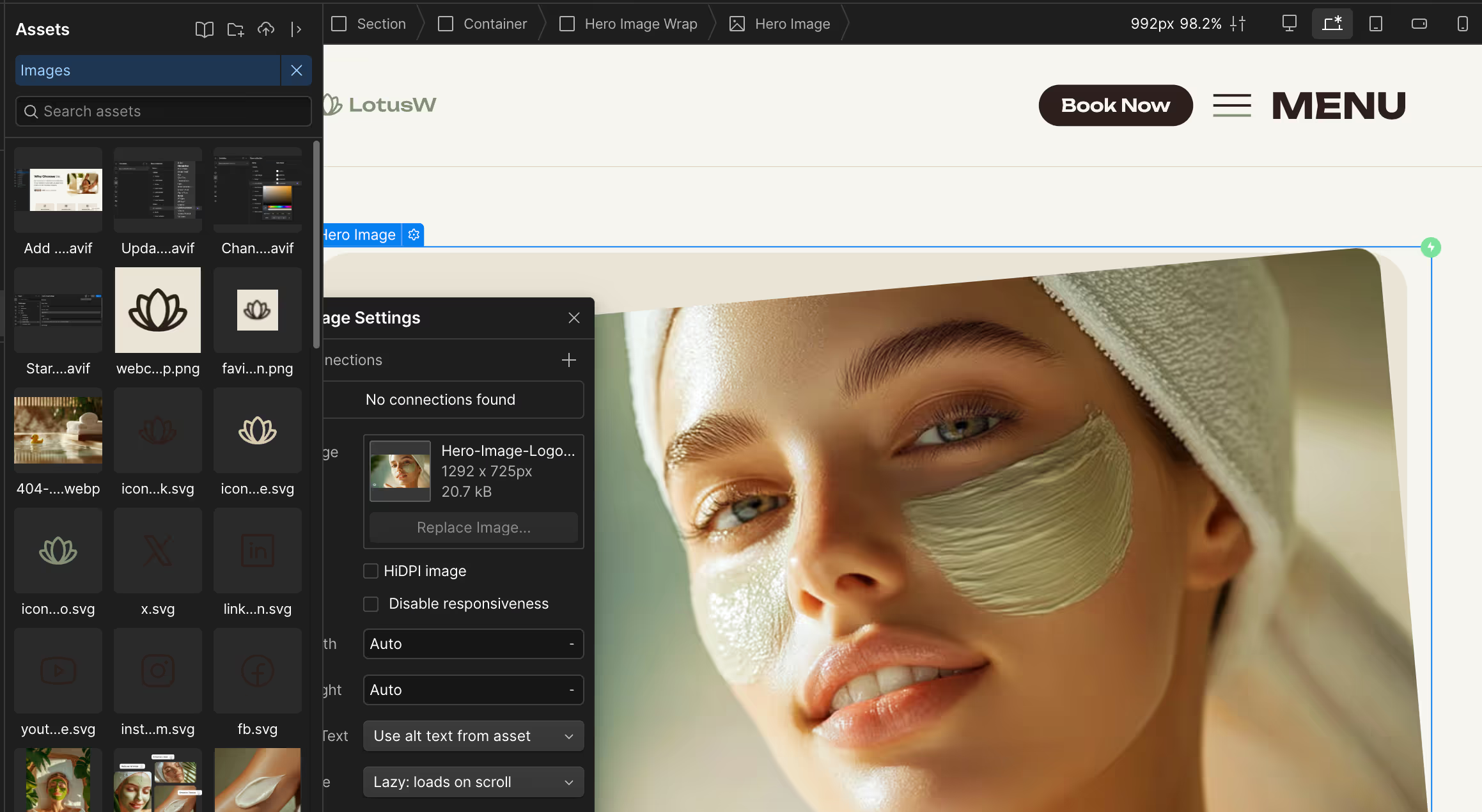
Replace hero images, illustrations, icons, and screenshots with your own. Even simple screenshots of your product instantly make the site feel original.
Customize Layout Without Breaking Anything
Duplicate sections, move blocks up or down, rearrange columns, and hide elements on mobile. Webflow's Flexbox and Grid tools make this easy. Tip: duplicate a section before editing it for a backup.
Keep It Simple
Most beginners over-customize. Good customization means clearer messaging, better spacing, and consistent branding.
Final Thoughts
Customizing a Webflow template is about adapting a solid foundation to match your brand. Start small: replace content, update colors and fonts, remove what you don't need.
Bonus Tips
- Compress images into .avif or .webp formats using Webflow's built-in tools to improve performance and SEO.
- Use CMS Collections for dynamic content like blogs, portfolios, or team listings.
- Use the "Clean Up" option in the Style Manager to remove unused classes.
- Preview your design across all breakpoints to ensure responsiveness.
- Use keyboard shortcuts like Cmd/Ctrl + E to quickly search for elements.